
GameHub Lite v5.3.3 RC-2
GameHub Lite is a new and improved version of the GameHub emulator. So let me tell you that it is made for those users who want a light, fast, and clean gaming experience on their Android. Apart from this, this version is also open-source, so it will not track you and will not ask for extra permissions. It works completely offline.
GameHub Lite loads very quickly on your Android device and also uses very little storage. Games like Windows and Steam run very smoothly, and there is no need to login on low-end devices. You can even learn how to play GTA 4 on Android with GameHub Lite easily. All you have to do is import your game and start playing.
To install GameHub Lite on your Android device, you should download it from the official website: Gamehub-Lite.com
You may find many fake websites online that share the wrong files or malware. One should always stay away from all these fake sites. For safe download, you should always trust the official website.
If you need a simple, safe, and fast emulator for Android devices, then GameHub Lite is a great choice for you. This gives you better control, better performance, and smoother gameplay. If you’re comparing emulators, check out our GameNative vs GameHub Lite 2026 guide. You can also check our Ryujinx Canary setup guide for simple Switch emulation tips.
Also Read > GameHub vs GameHub Lite: Full Comparison
What is Gamehub Lite?

GameHub Lite is a very special Android emulator. Through this emulator, you can also make your phone like a mini PC gaming device.
So its main purpose is to allow users to easily run their favorite Windows games directly on their Android devices, without any heavy setup. This allows you to play The Witcher 3 on Android without any lag.
Let me tell you that this emulator is open-source, which means its code is completely safe, transparent, and anyone in the community can make improvements to it.
As soon as you start the app, you are not asked for any login, account, or unwanted permissions. All you have to do is install the app, import the game, and play it.
The size of GameHub Lite has been reduced considerably, so it runs very fast and smoothly even on older phones. Its performance is also quite stable, FPS is also much better, and its interface is very simple, so that all new users do not face any problem.
In simple words, GameHub Lite is a clean, lightweight, and privacy-friendly emulator that makes it quite easy torun PC games on Android devices. See our list of top 20 PC games for GameHub Lite. You can even play Hytale on Android using this emulator.
How GameHub Lite Works
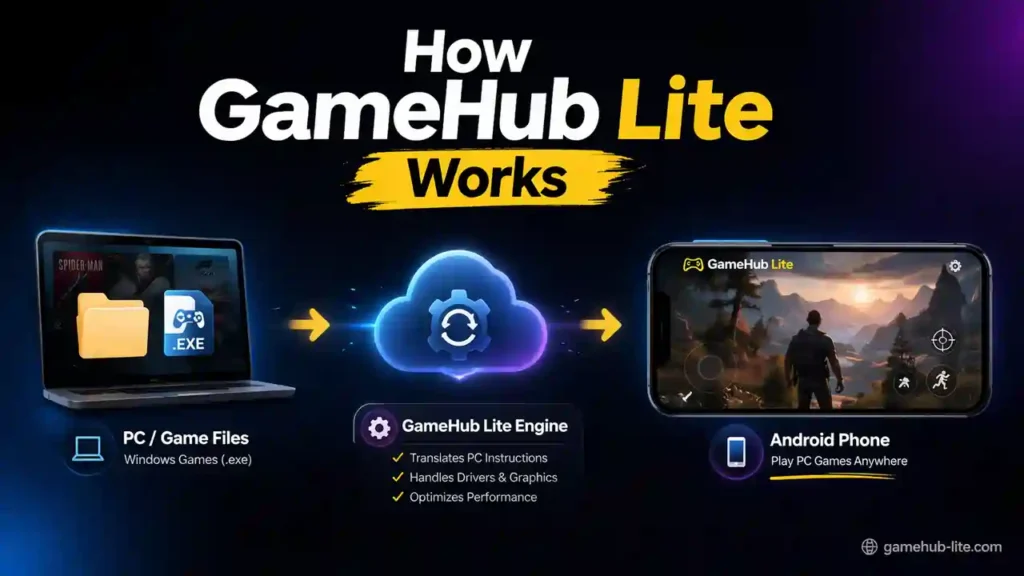
Understanding how GameHub Lite works is simple:
- Android uses ARM processors, but PC games use Windows (x86), so they do not run directly.
- This causes crashes, lag, and poor performance on many phones.
- GameHub Lite uses tools like Wine/Proton to translate PC game instructions.
- It converts Windows commands into a format your phone can understand in real time.
- The app also handles drivers, graphics, and memory automatically.
- It keeps everything optimized in the background for better performance.
- It is lightweight, fast, and works offline with no tracking.
- You get smoother gameplay, better FPS, and more stable performance.
In short, it works like a simple bridge that lets your Android phone run PC games easily.
Gamehub Lite Features
Lightweight Size
The size of GameHub Lite has been made very small so that it can run smoothly even on low-end phones.
Open-Source Emulator
This emulator is open-source. You can also create tweaks, changes, and custom setups in it. Learn how to install AjayPrefix in GameHub Lite for advanced setups. And people of the community also keep improving it.
Faster Performance
This emulator loads very fast. In this, all the games run with high FPS. Lag and stutter are rarely seen.
Custom Game Settings
You can also set unique settings for each game. Compatibility layer, GPU driver, translation mode, everything can be customized in this. You can also install GOG Galaxy Launcher on GameHub.
No Login Required
You don’t need an account or email to use this emulator. You have to open the app and then use it directly. Some games require you to install GmsCore or microG services on Android.
No Extra Permissions
This app has already removed 31 invasive permissions. There is no need for any permissions like location, mic, contacts, camera, etc.
Why You Need GameHub Lite
Understanding why players use GameHub Lite is very easy:
- Android phones cannot run PC games (.exe files) directly.
- This causes crashes, lag, and poor performance.
- GameHub Lite adds a light emulation layer to run games.
- It reduces lag and improves performance.
In short, GameHub Lite turns your Android phone into a small PC gaming device.
How to Download Gamehub Lite Emulator?
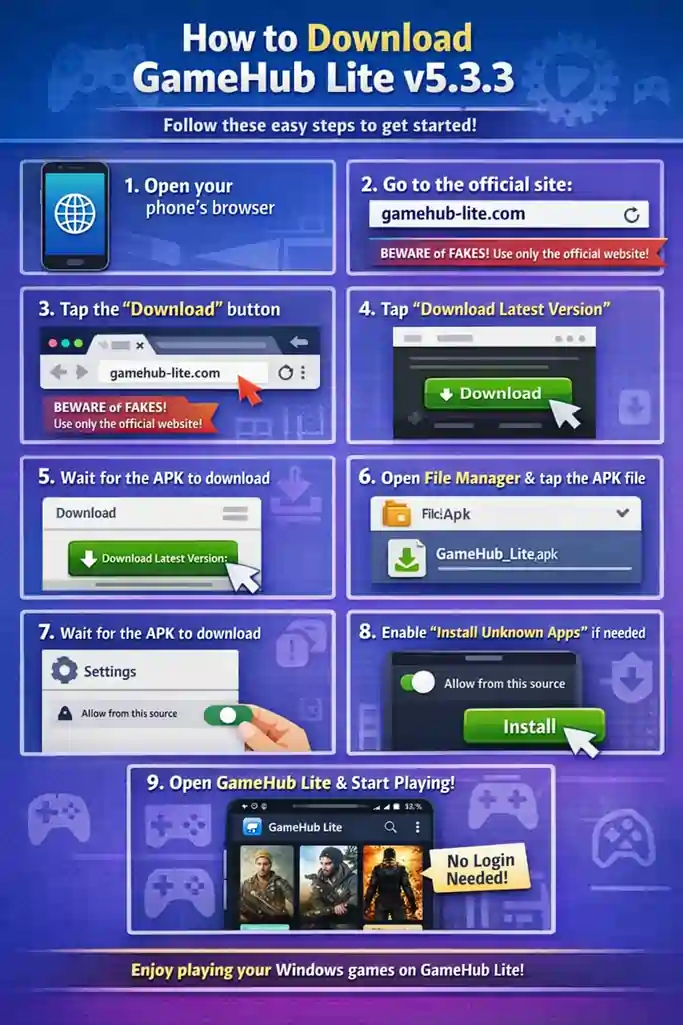
Downloading GameHub Lite v5.3.3 is very easy. All you need to do is follow the easy steps given below. All these steps are given beginner-friendly way, so that any user can easily download and install it.
- First of all, you have to open your phone’s browser.
- Go to the official website: gamehub-lite.com
Always be careful of fake websites. Only trusted and official sources should be used for safe and reliable downloads. - Now you will see the “Download” button on the homepage. You have to tap on us.
- Then the Download page will open in front of you. Here, tap on the “Download Latest Version” button.
- Now the APK file will start downloading. Then you will have to wait for a few seconds.
- Once the download is complete, open the File Manager and start the installation by tapping on the APK file.
- If the installation is blocked, then enable the “Install Unknown Apps” permission. Then again click on the install option.
- Once the installation is complete, open GameHub Lite. Here, you will not need any login or extra permissions.
That’s it!
Now you can import and play your Windows games from GameHub Lite.
Also Read > How to Download Games on GameHub Lite
Disclaimer: We do not host or distribute any APK files. This website is for educational and informational purposes only. Users should download software only from official and legal sources.
How To Set Up Gamehub Lite Emulator
If you have installed the GameHub Lite Emulator on your Android device and you don’t understand anything, there’s no need to worry. The setup process is quite easy. You just need to follow all the steps given below.
- Step 1: First, you need to open your mobile browser and visit the official website gamehub-lite.com. From there, download the latest GameHub Lite APK.
- Step 2: Once the download is complete, you need to open the File Manager and locate the APK file.
- Step 3: Tap on the APK file to start the installation. If the phone asks for permission, you will have to allow installation from unknown sources.
- Step 4: Once the installation is complete, open the GameHub Lite app.
Also Read > How to Fix GameHub Lite Crashing on Android
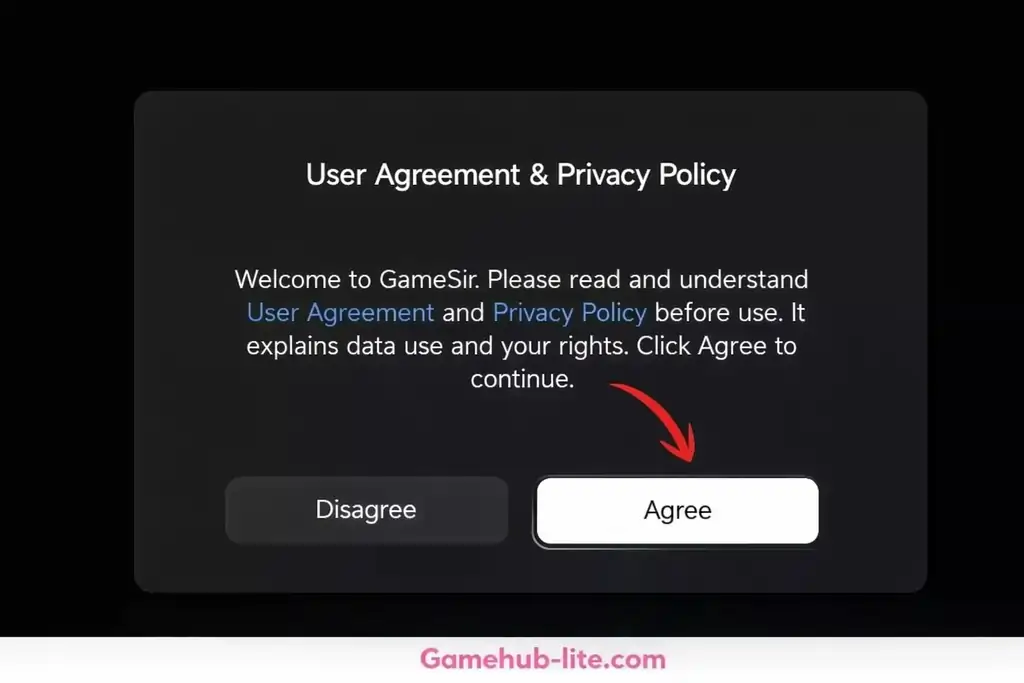
- Step 5: When you open the app for the first time, you will see the User Agreement. After reading the terms of use, tap on Agree.
- Step 6: You will now be taken directly to the main dashboard. You don’t need to create an account here; you can use it directly.
Also Read > How to Add PC Games in GameHub Lite Emulator
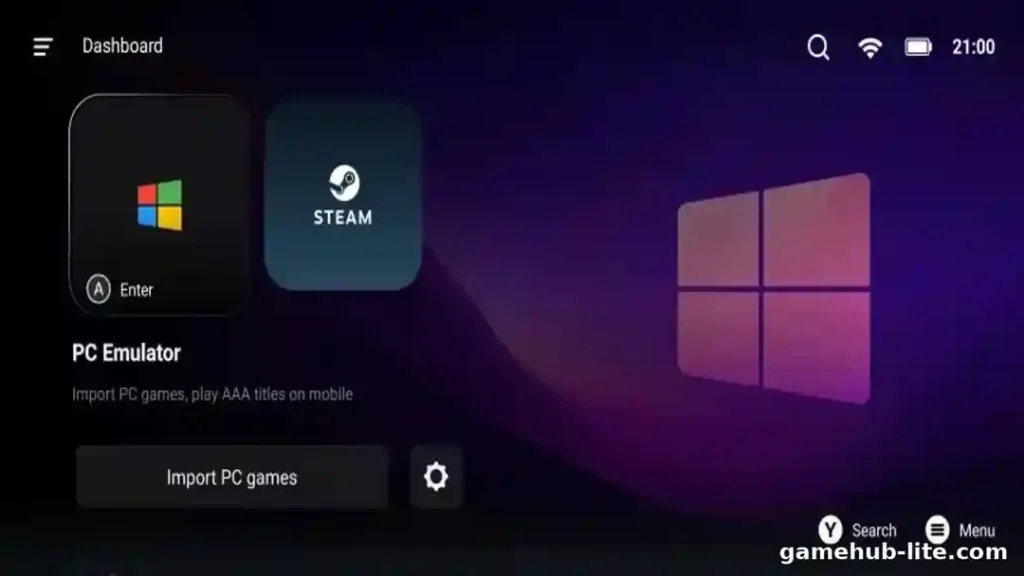
- Step 7: On the home screen, you will need to select the Windows (PC) option.
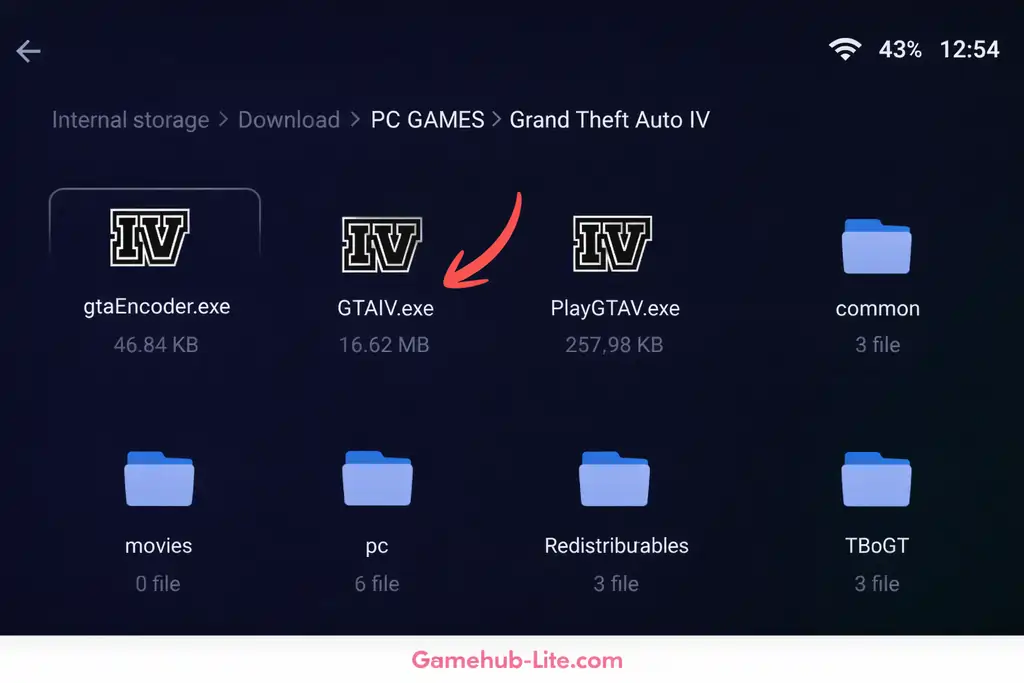
- Step 8: Now you need to tap on Import PC Games. You will need to select the game’s .exe file from your storage.
- Step 9: If the option to add a cover image appears, select the image and click the Confirm button.
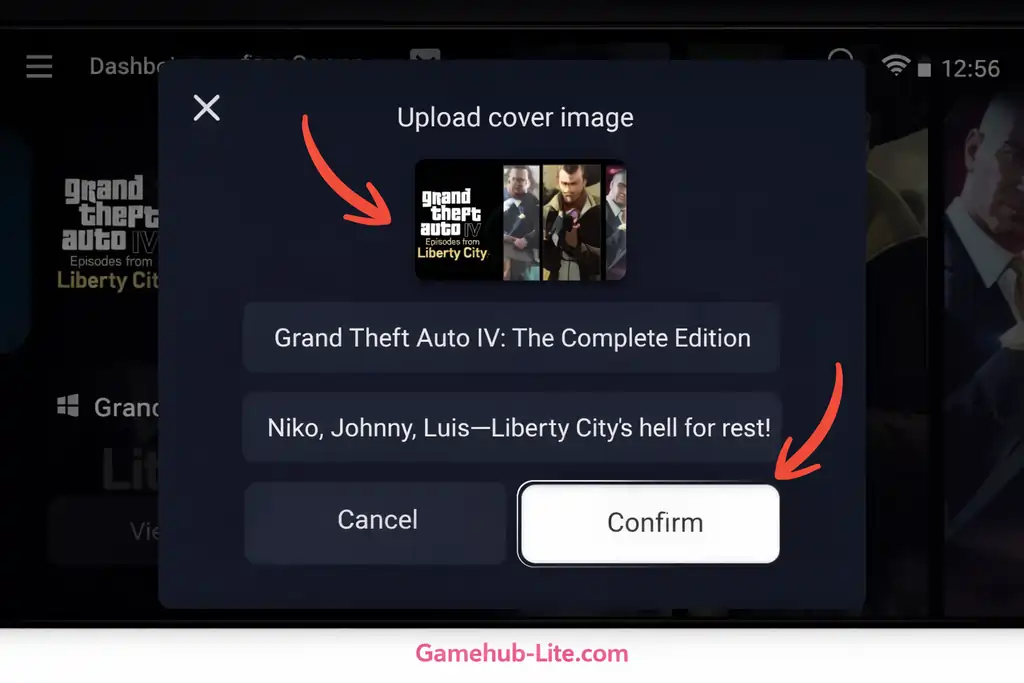
- Step 10: GameHub Lite will now start downloading all the necessary firmware and files. During this process, you should not close the app.
- Step 11: After the download is complete, you will need to return to the main dashboard. Your game will be displayed there.
- Step 12: Now tap on the game, and if needed, you can adjust the PC game settings for better performance.
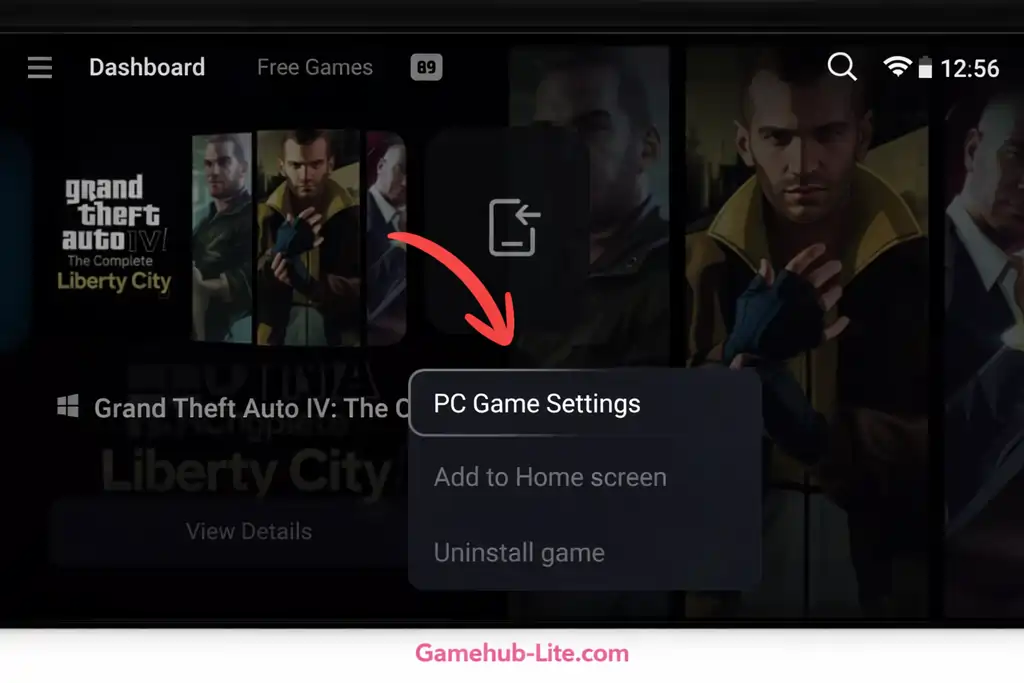
- Step 13: Now, tap on Play to launch your game. If the game crashes the first time, you will have to close the app and try again. If you’re having trouble, check how to open GameHub sub-folders after patch update.

That’s all.
Make sure to patch GameHub Lite for the best experience.
Now you can enjoy PC games on your Android device with the GameHub Lite Emulator.
Pros and Cons
Pros
- The app is small and fast.
- No login is needed.
- It does not track users.
- You can play games offline.
- Setup is easy for beginners.
Cons
- Updates must be done manually.
- Some features are missing.
- Big games may crash.
- Not all games will run.
- No official support is given.
Best Settings for Better Performance
All settings are changed per game. Open the game. Go to … > PC Game Settings. Start with the recommended settings below.
Then test FPS inside the game. Use the in-game overlay with the Back button. If your device has less than 8GB RAM, reduce the resolution. Lower resolution gives better FPS. Turn on Touch Controls if you do not use a controller.
General Settings (For Most Games)
| Setting | Recommended Option | Reason |
|---|---|---|
| Resolution | 960×544 or 800×600 (low-end) / Native (high-end) | Lower resolution increases FPS |
| Frame Limit | Off or 60 FPS | Off gives more FPS, 60 gives stable gameplay |
| Native Rendering | Enable + Force Enable (if available) | Improves performance in supported games |
Also Read > How to Play PC Games at 60 FPS on Low-End Phones with GameHub Lite
Resolution is the most important setting. Low-end devices should not use native resolution. High-end devices can use native for better graphics.
Compatibility Settings (Important for Smooth Gameplay)
| Setting | Value | Notes |
|---|---|---|
| Compatibility Layer | Proton ARM version or Proton x64 version | ARM for better speed, x64 for full Steam support |
| Translation Parameter | Extreme | Best performance mode |
| CPU Translator | FEX (latest version) | Fast x86 to ARM translation |
| Multithreading | Enabled | Makes FPS smoother |
Use Extreme mode first. If the game crashes, switch to Performance mode. FEX is usually the fastest option. Box64 can work better in some games.
GPU / Graphics Drivers (Very Important)
Always use the newest driver inside the app. Drivers update automatically in most cases. Snapdragon devices work best with custom Turnip drivers.
| Device Type | GPU Driver | DXVK | VKD3D |
|---|---|---|---|
| Snapdragon (Adreno) | Turnip (latest version) | Default | vkd3d-proton-2.14.1 |
| Mali / MediaTek | System Driver or mali-fix | dxvk-v1.11.1-mali-fix | Default |
| Low-End Devices | System Driver | Default | Default |
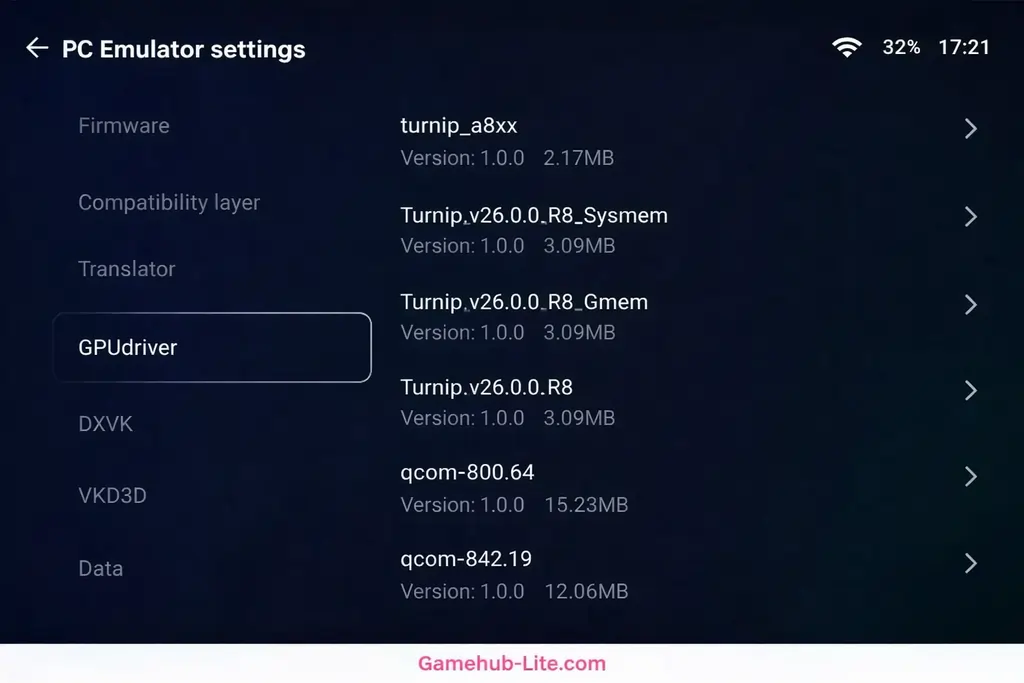
Choose the Turnip version that matches your processor.
Device-Specific Tips
Snapdragon devices can reach 30–60 FPS in many GTA 5 games using Turnip and Extreme mode. Mali devices work better with System Driver and ARM layers. They are good for indie games.
For 4–6GB RAM devices, use 800×600 resolution. Turn off VSync. Close background apps. Target 30 FPS. For 8GB+ RAM devices, use native resolution. Enable Extreme and Multithreading. Target 60 FPS.
Troubleshooting:
Also Read > How to Fix Black Screen Issue in GameHub Lite
- Stuttering: Lower resolution. Change Extreme to Performance. Restart the app.
- Game crashes: Change Proton version. Update drivers.
- Overheating: Limit FPS to 30–45.
If you see errors, learn how to fix ‘this feature not supported’ in GameHub Lite.
Learn how to fix ‘container installation failed’ in GameHub.
If you face the auto back problem, check our GameHub Lite auto back problem fix guide.
Check YouTube for game-specific (e.g., “GameHub Lite [Game] settings”).
Test settings slowly. Results are different for every device and game.
Is Gamehub lite Safe?
While GameHub Lite is popular, installing APK files has some risk. To stay safe:
- Download only from trusted GitHub sources or gamehub-lite.com
- Scan the APK before installing
- Avoid unknown or modified versions
- Do not share personal details
These steps help reduce risk and keep your device safe.
GameHub Lite vs Normal Connection
| Feature | Normal Way | GameHub Lite |
|---|---|---|
| Running PC Games | Very hard | Easy and smooth |
| Crashes | Happens a lot | Much less |
| Lag and Stuttering | High | Low |
| FPS | Very low | Better and stable |
| Phone Heating | Gets hot fast | Less heating |
| Can Play Offline | No | Yes |
| Overall Performance | Poor | Much better |
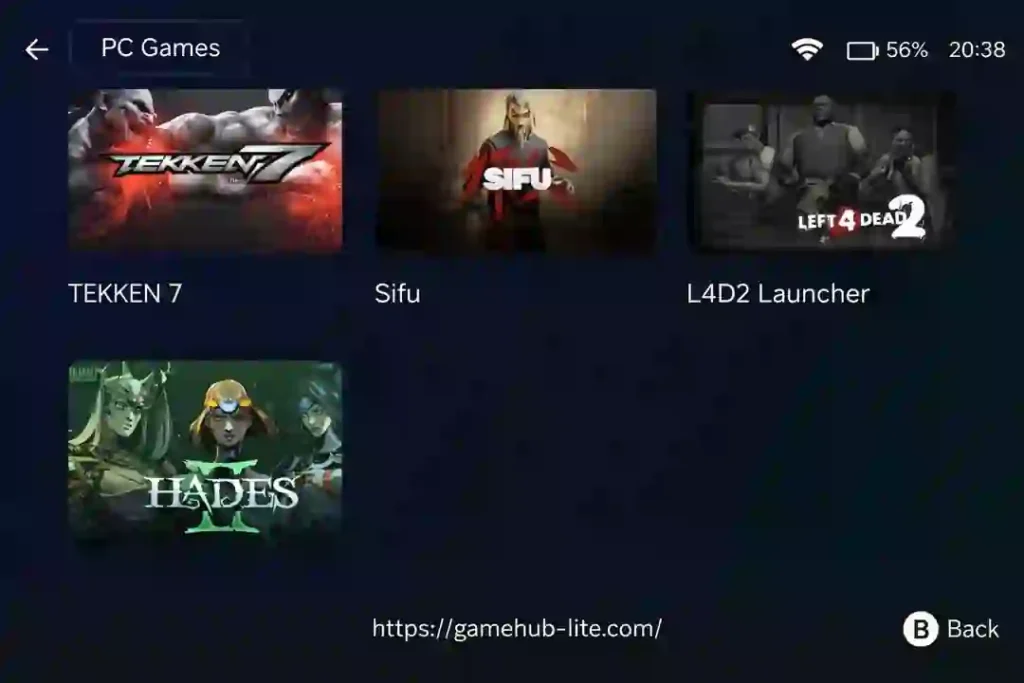
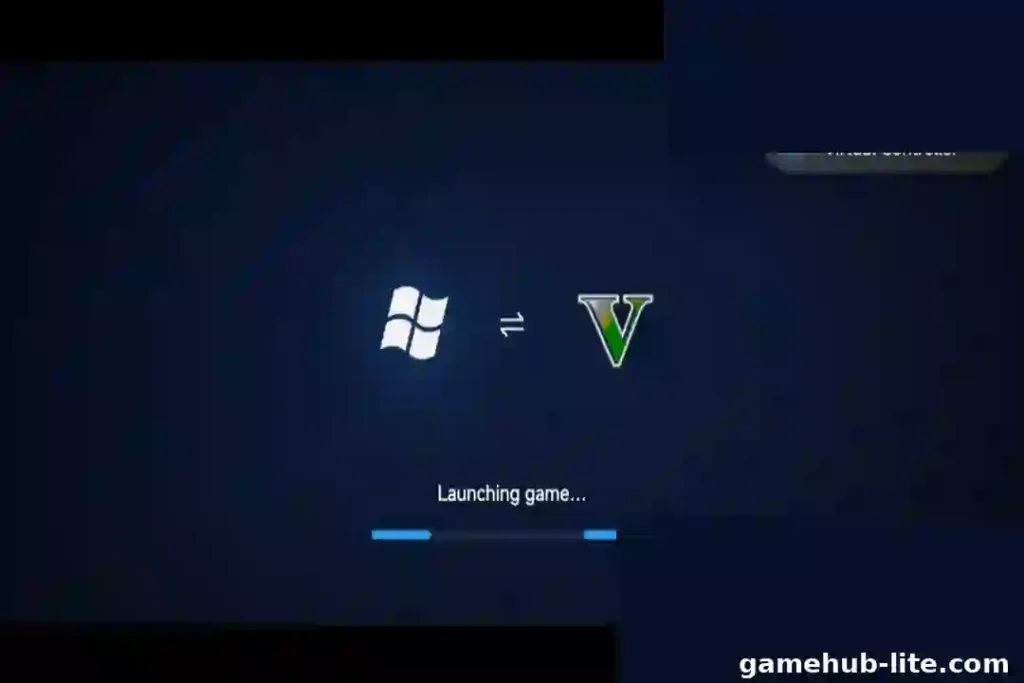
Gamehub lite Images
FAQs
What is GameHub Lite?
GameHub Lite is a light Android emulator. It lets you run Windows games on your phone.
Is GameHub Lite safe?
Yes, it is safe. It does not track you or ask for extra permissions.
Where can I download it?
You can download it from gamehub-lite.com. Avoid fake websites.
Does it work on low-end phones?
Yes, it works well. It is small in size and runs fast.
GameHub Lite
GameHub Lite v5.3.3 RC-2 is a fast and lightweight Android emulator. Download the official APK and play your favorite Windows games smoothly on your phone.
Price Currency: $
Operating System: Android
Application Category: Game
4.8