
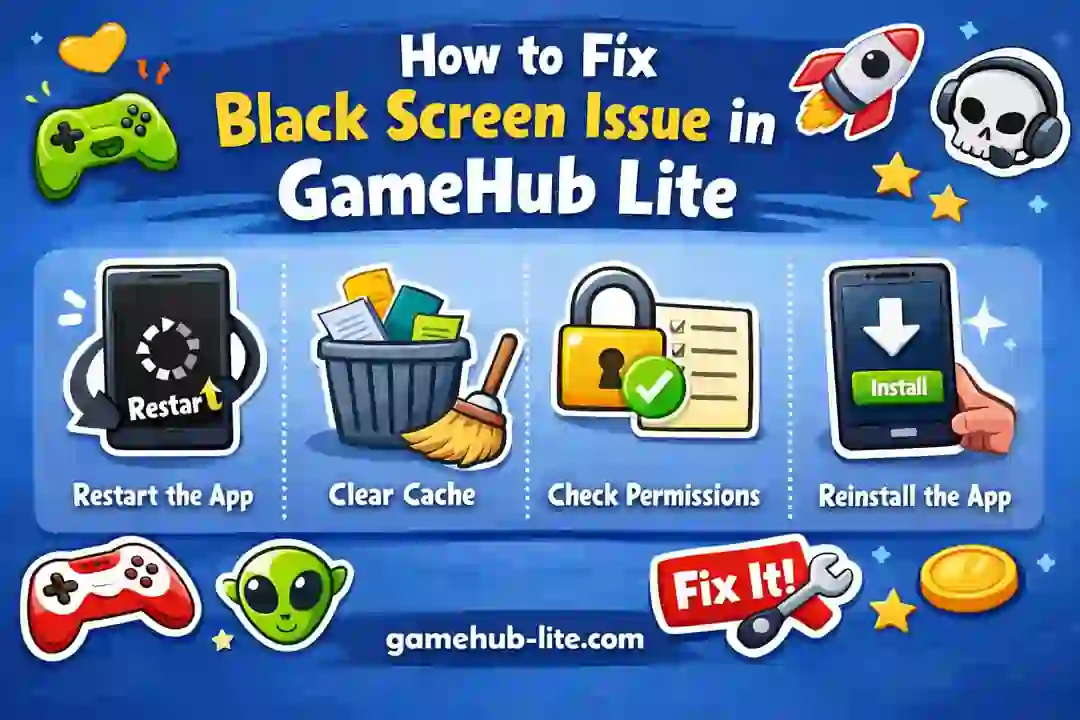
The black screen issue in GameHub Lite is a common problem in 2026. Many Android users face this while trying to play PC or Steam games. In most cases, the game starts, but nothing appears on the screen. Sometimes you may hear sound, but the display stays black. In other cases, the app freezes completely.
This issue can happen on both low-end and mid-range devices. It does not always mean your phone is weak. Most of the time, the problem is caused by wrong settings or missing permissions. If you’re also experiencing crashes, check our guide on fixing GameHub Lite crashing issues.
The good news is that you can fix it easily. This guide explains the causes and simple methods to solve it.
What Is GameHub Lite?
GameHub Lite is a lightweight Android emulator. It allows users to run PC and Steam games on mobile devices. It is designed for low resource usage and better performance.
It also reduces battery usage and avoids extra background tasks. However, it converts PC graphics to Android hardware. Because of this, some games may not load correctly and show a black screen.
System and Device Requirements
Before fixing the issue, check your device. GameHub Lite depends on your CPU, GPU driver, and RAM.
If your phone has an old Android version or low storage, problems may occur. But if your device meets basic requirements, the issue is usually software-related, not hardware.
For the best experience, make sure you’re using the latest GameHub Lite v5.3.3 update 2026.
Why the Black Screen Issue Happens
The black screen problem usually happens when graphics fail to load. This can be due to an incompatible graphics renderer.
Sometimes, permissions are missing. Without storage access, the game cannot load files.
High resolution settings can also cause problems. They increase GPU load. Corrupted game files may also lead to this issue.
In some cases, Android battery optimization stops the emulator. This prevents proper loading and causes a black screen.
Also Read: How to Fix “This Feature is Not Supported” in GameHub Lite
How to Fix Black Screen Issue in GameHub Lite
The black screen issue in GameHub Lite happens when the game loads but nothing appears on the screen. Sometimes you may hear sound, but the display stays blank. This is usually caused by wrong settings, missing permissions, or graphics issues.
Here are some quick fixes:
Restart the Container
Start with a simple fix. Restart the GameHub Lite container.
Sometimes the container does not load graphics components properly. Restarting it refreshes the emulator and fixes many issues. If you’re having container problems, see fix container installation failed in GameHub.
Change Graphics Renderer
Graphics settings are very important. Many devices do not support Vulkan properly.
Switch the renderer from Vulkan to OpenGL. OpenGL is more stable on most devices. After changing the setting, close the app fully and launch the game again.
Check App Permissions
GameHub Lite needs storage permissions to load game files. If permissions are denied, the game may show a black screen.
Go to settings and allow all required permissions. Then restart the app.
Relaunch the Game
Some games do not start properly on the first try.
If you see a black screen, close the game. Wait a few seconds and open it again. Many users fix the issue after 2–3 launches.
Lower the Resolution
High resolution can overload your device. This prevents proper game rendering.
Set the resolution to 1280×720 or lower. This reduces GPU load and improves stability.
Best Settings for Smooth Gameplay
Using stable settings helps prevent black screen issues.
Recommended settings:
- Use OpenGL renderer
- Keep resolution at 720p or lower
- Set FPS between 30–45
- Disable battery optimization
- Close background apps
These settings improve performance and reduce errors.
Compatibility Notes and Known Issues
Not all PC games work on GameHub Lite. Some games may load but fail to display anything. This is common with heavy or DRM-protected games.
After updates, old containers may also cause issues. Restarting or recreating them can help.
To test stability, try lightweight or indie games first.
Pros and Cons
Pros:
- Easy fixes
- No need to reinstall the app
- Works on most Android devices
Cons:
- Some games are unsupported
- Requires manual settings
- Performance depends on device hardware
Who Should Use This Guide?
This guide is helpful for Android users facing black screen issues. It is good for beginners, low-end device users, and players trying PC games for the first time.
If you want a quick and simple fix, this guide will help you.
Conclusion
The GameHub Lite black screen issue is common but easy to fix. It usually happens due to graphics settings, permissions, or resolution problems.
You can fix it by restarting the container, switching to OpenGL, allowing permissions, and lowering resolution. These steps solve the issue for most users.
If the problem continues, the game may be incompatible. In that case, try another game or wait for updates.
With the right settings, GameHub Lite can run smoothly and give a better gaming experience.
FAQs
Why does GameHub Lite show a black screen when launching a game?
This usually happens due to incorrect graphics renderer settings or unsupported resolution.
Does a black screen mean the game is not supported?
Not always. Many supported games show black screen until settings are adjusted.
Which renderer works best in GameHub Lite?
OpenGL works better for most Android devices.
Can low-end devices fix this issue?
Yes, lowering resolution and FPS often solves the problem.
Is reinstalling GameHub Lite necessary?
Only as a last option if all fixes fail.