

Grand Theft Auto V is still one of the most played open-world games in the world. Even in 2026, many users want to play it on Android.
Earlier, this was not possible. The game is very large and needs strong hardware.
Now, with GameHub Lite, things have changed. Some users are running GTA V on mobile using compressed Lite builds.
But how well does it actually work? Let’s understand in a simple and practical way.
What’s New in 2026?
In 2026, Android emulation has improved a lot.
GameHub Lite now supports:
- Vulkan graphics (better performance)
- Custom drivers like Turnip
- Offline gameplay support
- Reduced background processes
Because of these updates, heavy PC games are more playable on phones. If you’re new to GameHub Lite, check out our GameHub vs GameHub Lite guide.
At the same time, community developers created GTA V Lite builds. These versions reduce game size and make it easier to run on mobile.
What Are GTA V Lite Builds?
GTA V Lite builds are unofficial compressed versions of the game.
They are created by:
- Reducing texture quality
- Removing extra audio files
- Compressing game data
This helps reduce storage size and improve performance.
Also Read > How to Play GTA 4 on Android with GameHub Lite (Guide)
Popular GTA V Lite Builds (2026)
| Build Type | Size | Best For | Performance | Visual Quality |
|---|---|---|---|---|
| Extreme Lite | 2GB–3GB | Low-end devices | 30–45 FPS | Very Low |
| Ultra Lite | 5GB–8GB | Mid-range phones | 40–60 FPS | Medium |
| Balanced Build | 13GB | Good performance | Stable gameplay | Better |
| Full Build | 60GB–72GB | High-end devices | Near 60 FPS | High |
Smaller builds run faster but look worse. Larger builds look better but need strong hardware.
Device Requirements and Compatibility
To get smooth gameplay, your device should match the right level.
Low-End Devices
- Processor: Snapdragon 7xx or similar
- RAM: At least 6GB
- Use small builds (2GB–5GB)
- Set resolution to 800×600 or 720p
These devices can run the game, but expect basic graphics and lower FPS.
Mid-Range Devices
- Processor: Snapdragon 8 Gen 1 or Gen 2
- RAM: 8GB or more
- Use 5GB–8GB builds
You can get 40–60 FPS with balanced settings. Gameplay feels smoother here.
High-End Devices / Handhelds
- Devices like Retroid Pocket or POCO F6
- High-end Snapdragon processors
- 12GB RAM (recommended)
- Use 13GB–72GB builds
These devices can deliver near 60 FPS with better graphics.
Important Performance Tip
GameHub Lite works best with:
- Vulkan graphics backend
- Turnip drivers (for Snapdragon GPUs)
If your device has a Mali GPU, you may need extra tweaks. Use settings like extreme translation mode for better stability.
Users interested in Nintendo Switch emulation can also check Ryujinx Canary for Switch games for another high-performance gaming option.
Also Read > 60FPS guide for low-end phones
How to Play GTA V on GameHub Lite
Setting up GameHub Lite is simple if you follow the right steps. You do not need technical skills. Just use correct files and basic settings.
1. Download and Install
Download GameHub Lite from a trusted source like GitHub or the official site: https://gamehub-lite.com/
Avoid random websites, as they may contain unsafe or modified files.
After downloading, enable “Install from unknown sources” in your phone settings. Then install the app and open it.
2. Basic Setup
When you open the app, allow all permissions. This helps the emulator run games properly.
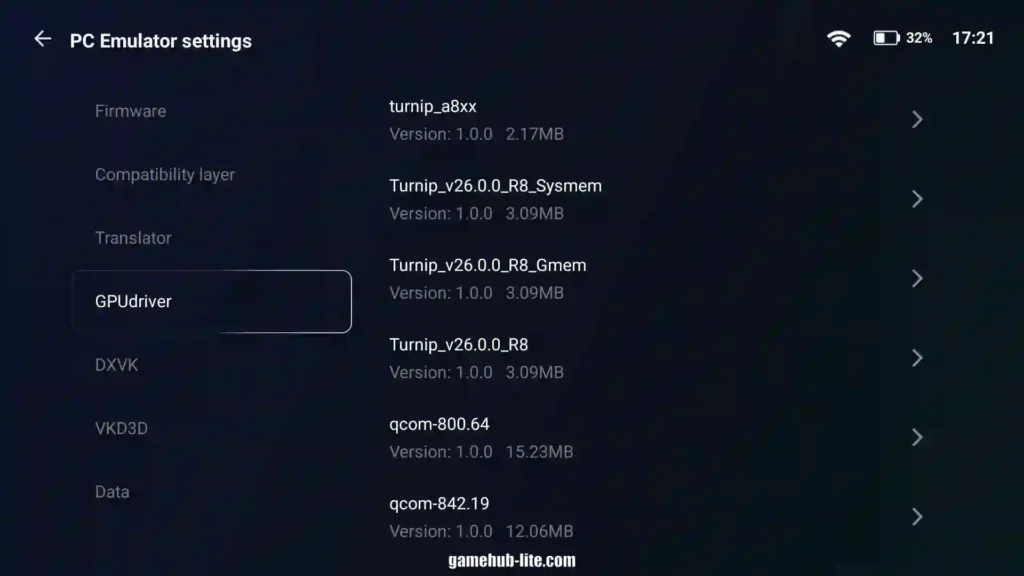
Go to settings and select Vulkan as the graphics API. It gives better performance in most cases. You can also lower resolution for smoother gameplay. Snapdragon devices work better with Turnip drivers.
3. Get GTA V Lite Files
Download a GTA V Lite build based on your device. Smaller builds run faster but have lower graphics.
Extract the files properly. Most builds include a game folder and launcher file. Always scan files and follow rules set by Rockstar Games.
4. Add the Game
Open GameHub Lite and click on “Add Game.” Select the GTA V folder and choose the main .exe file.
The first launch may take some time. The emulator may download extra files. This is normal.
5. Optimize Settings
Lower heavy settings like shadows and reflections for better FPS. Turning off anti-aliasing also helps.
In emulator settings, keep resolution at 720p or lower. Set FPS to 30 or 45 for stable performance. Small changes can improve gameplay a lot.
Quick Fix Tips
If the game crashes, clear cache and restart the app. If you see a black screen, try changing the graphics backend.
For low FPS, reduce resolution and close background apps. These small fixes solve most problems.
Also Read > How to Download Games on GameHub Lite
Performance Review (Based on User Tests)
From user reports and testing:
- Open areas: Smooth gameplay (50–60 FPS on mid-range)
- Busy areas: Drops to 30–40 FPS
- Low-end devices: Playable but not smooth
- High-end devices: Near PC-like experience
Smaller builds are better for casual play Larger builds are better for full missions
Pros and Cons
Pros
- Play GTA V on mobile
- No internet needed after setup
- Controller support available
- Open-world gameplay works
Cons
- Graphics are reduced
- Some crashes may happen
- Multiplayer is not supported
- High battery usage and heating
GameHub Lite vs Cloud Gaming
| Feature | GameHub Lite | Cloud Gaming |
|---|---|---|
| Internet Needed | No (after setup) | Yes (always) |
| Graphics Quality | Medium–High | High |
| Latency | No delay | Depends on internet |
| Device Load | High | Low |
| Cost | Free | Subscription |
GameHub Lite is better for offline users Cloud gaming is better for high graphics without device load
Important Safety Note
GTA V is owned by Rockstar Games.
- Always use legally owned copies
- Avoid unsafe or unknown downloads
- Scan files before installing
Final Verdict
GTA V on GameHub Lite is not perfect, but it works.
It is a big step for mobile gaming. You can enjoy GTA V on your phone without cloud gaming.
- Low-end users: Playable with limits
- Mid-range users: Good experience
- High-end users: Best results
If you are ready to adjust settings and manage storage, it is definitely worth trying.