
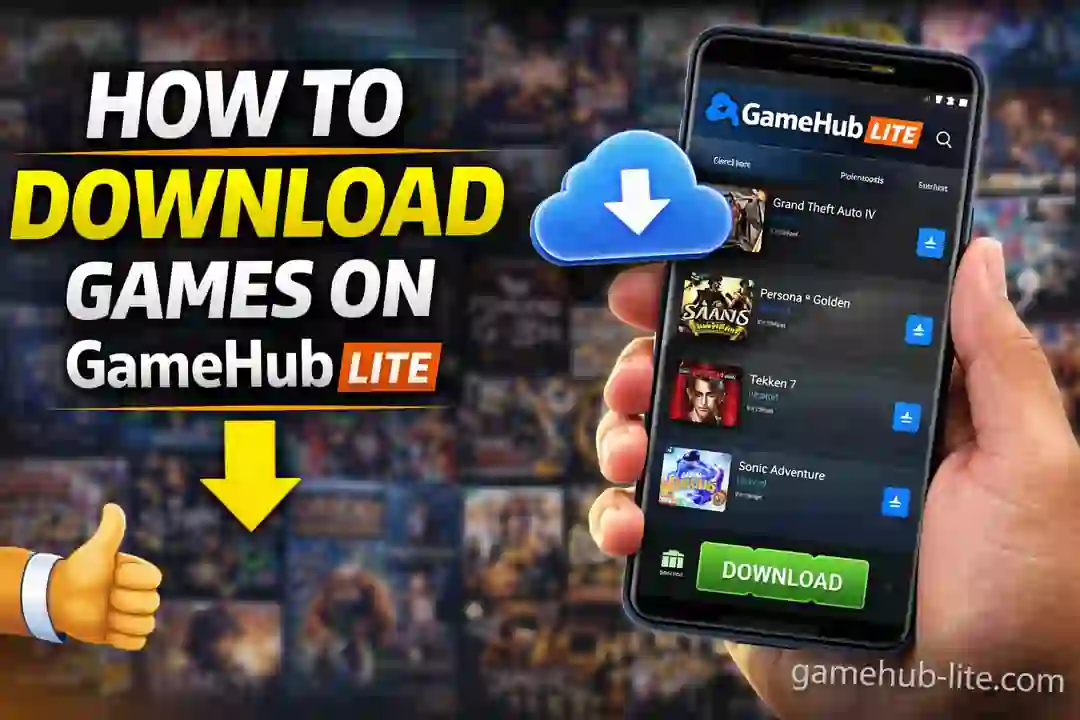
Downloading and playing PC games on an Android phone is no longer difficult. With GameHub Lite, you can install and run many Windows games directly on your device. You can download games from Steam or import game files using .exe installers. This guide explains everything in simple steps so you can start quickly.
Introduction
Many users want to play PC games without using a computer. GameHub Lite makes this possible. It creates a virtual Windows environment on Android. After setup, you can play games offline without needing a PC again.
You can choose between two methods:
- Download games from Steam library
- Import games using .exe files
Both methods work well if your device meets the requirements.
What Does Downloading Games Mean?
Downloading games in GameHub Lite means installing them inside a virtual container. This container acts like a mini Windows system.
- Steam method downloads games from your account
- Import method installs games from local storage
GameHub Lite uses Wine compatibility layer to run Windows programs on Android.
Why It Is Important
Understanding this process is important for smooth gameplay. Containers can reset or break sometimes. If you do not install games properly, you may lose progress.
Downloading games correctly helps you:
- Keep your data safe
- Play offline anytime
- Manage games easily
It also reduces errors during gameplay.
How GameHub Lite Works
GameHub Lite creates a separate environment inside your phone. This environment runs PC games like a real system.
For Steam:
- You log in
- Select a game
- Download and install
For imports:
- You choose a .exe file
- GameHub installs it inside the container
- Game appears on your dashboard
Everything stays inside the container, so your system remains safe.
Requirements (Before You Start)
Make sure your device meets these basic requirements:
- Android 12 or higher
- Processor: Snapdragon 8 Gen 2 or better
- RAM: Minimum 12GB (8GB works for light games)
- Storage: At least 50GB free
- WiFi connection for downloads
- Optional: Controller and SD card
A powerful device gives better performance and fewer crashes.
Step-by-Step Guide to Download Games
Step 1: Install GameHub Lite
Download the latest version from:
- Official site: gamehub-lite.com
- Or GitHub releases
Install the APK and open the app. Accept permissions and complete setup.
Step 2: Download Steam Games
- Open GameHub Lite
- Go to “My” tab
- Tap Steam
- Log in using your account
- Your game library will load
Games not installed will appear in gray color.
Step 3: Install a Game
- Tap the game you want
- Select “Get the game”
- Wait for download to finish
Do not close the app during installation. Once complete, the game becomes playable.
Step 4: Enable SD Card (Optional)
If your device supports SD card:
- Go to settings
- Enable SD card storage
- Games will install to external storage
This is useful for large games.
Step 5: Import Non-Steam Games
If you want to install games manually:
- Download the game installer (.exe)
- Save it in your phone storage
- Open GameHub Lite
- Tap “Import PC Games”
- Select the .exe file
GameHub Lite will install the game automatically. For a more detailed walkthrough, see our guide on how to add PC games in GameHub Lite emulator.
Step 6: Launch and Adjust Settings
After installation:
- Tap the game icon
- Open Game Settings
- Adjust graphics and performance
You can try:
- Wine compatibility layer
- Turnip GPU driver (for Snapdragon devices)
Restart the game after changes.
Performance Tips for Better Gameplay
Good performance depends on settings and device power. Follow these simple tips:
- Use 720p resolution for smooth FPS
- Turn off VSync
- Lower graphics settings
- Close all background apps
- Keep your phone cool
For low-end devices:
- Use Lightweight Mode
- Try older or indie games
For high-end devices:
- Enable higher resolution and better textures
These small changes improve stability and reduce lag.
Post-Installation Behavior
After installation:
- Games appear on the dashboard
- Covers and icons load automatically
- Steam cloud saves may sync
- Games stay inside containers
You can also backup your containers to avoid data loss.
Common Problems and Fixes
Here are some common issues and solutions:
- Download fails → Check WiFi and restart app
- Game not importing → Use correct .exe file
- Crash on launch → Change compatibility layer see our guide on fixing GameHub Lite crashing issues
- Low FPS → Lower resolution and graphics
Testing different settings helps find the best performance.
Important Notes and Warnings
Always follow safe practices:
- Download APK from trusted sources only
- Avoid modified or fake files
- Use original game copies
GameHub Lite works best with official and clean files.
Also Read: How to Patch GameHub Lite
Conclusion
Downloading games on GameHub Lite is simple once you understand the process. You can install games using Steam or import them manually.
With the right setup:
- You can play PC games anywhere
- No computer is required after setup
- Performance can be optimized easily
Start with small games, test settings, and slowly move to bigger titles. With patience and proper setup, your Android phone can become a powerful gaming device.