
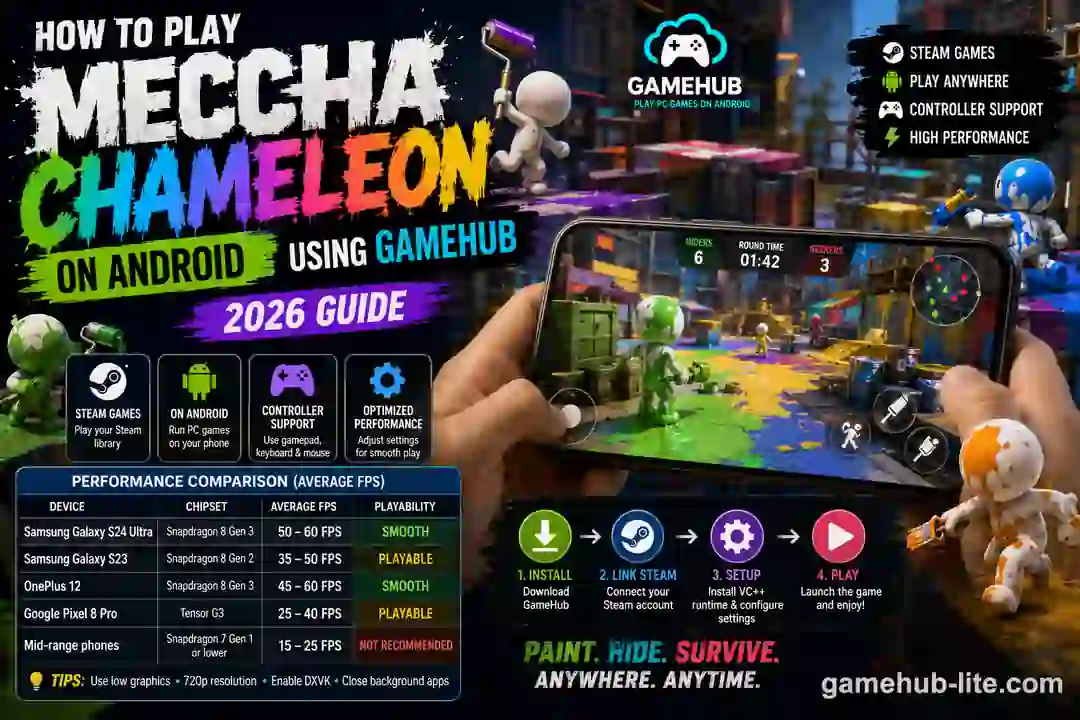
Meccha Chameleon is one of the biggest multiplayer games of 2026. Players love its creative hide-and-seek gameplay. You paint your white body to blend into colorful environments. Seekers try to find you. It’s chaotic, funny, and perfect for streaming.
But here’s the question everyone asks: Can you play Meccha Chameleon on your phone?
Yes, you can. With GameHub, you can run this Steam game on Android devices. This guide walks you through the full setup process. Step by step.
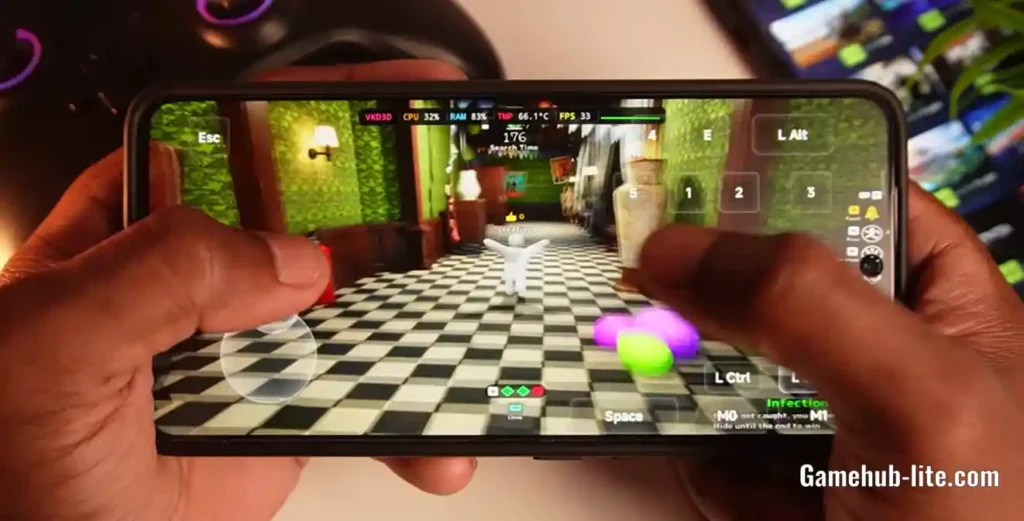
What Is Meccha Chameleon?
Meccha Chameleon is a multiplayer hide-and-seek game on Steam. It launched in June 2026. The concept is simple but addictive.
- Hiders paint their white character to match the environment
- Seekers hunt them down before time runs out
- Rounds are fast, creative, and often hilarious
The game went viral on YouTube and Twitch. Streamers love the janky physics and creative painting mechanics. It costs around $6 on Steam.
Official Platform: Steam (Windows PC only)
What Is GameHub?
GameHub is an Android app that lets you run PC and Steam games on your mobile device. It uses emulation and cloud technology to bring desktop games to your phone.
Think of it as a bridge between your Steam library and your Android phone.
Key Features of GameHub
- Steam account integration
- Desktop container emulation
- Controller and keyboard/mouse support
- Adjustable graphics and performance settings
- Cloud gaming options in newer versions
You can download GameHub here.
Can Meccha Chameleon Run on GameHub?
Short answer: Yes, but with some extra steps.
Meccha Chameleon is not officially supported on mobile. The developers built it for Windows PC only. However, the GameHub emulator can run it through its desktop container system.
Community members have confirmed playable performance on high-end Android phones. You may need to install additional runtimes for the game to launch properly.
Requirements Before You Start
Make sure you have everything ready before installing.
| Requirement | Details |
|---|---|
| Android Phone | Mid-to-high-end device recommended |
| Processor | Snapdragon 8 Gen 2 or higher |
| RAM | 8 GB minimum, 12 GB recommended |
| Storage | At least 10 GB free space |
| Internet | Stable Wi-Fi for Steam login and multiplayer |
| Steam Account | With Meccha Chameleon purchased (~$6) |
| GameHub App | Latest version from gamehub-lite.com |
How to Install and Play Meccha Chameleon on Android (Step-by-Step)
Follow these steps carefully. Each one matters.
Step 1: Download and Install GameHub
- Visit gamehub-lite.com/gamehub
- Download the latest version of GameHub
- Install the APK on your Android device
- Open the app and complete the initial setup
Tip: Always use the latest version. Older versions may have compatibility issues with newer Steam games.
Step 2: Link Your Steam Account
- Open GameHub
- Go to Settings → Steam Integration
- Log in with your Steam username and password
- Enable Steam Guard if prompted
- Wait for your library to sync
Your purchased games will appear in the GameHub library. Look for Meccha Chameleon in the list.
Step 3: Install Meccha Chameleon
- Find Meccha Chameleon in your GameHub library
- Tap Install
- Wait for the download to complete
- Do not launch the game yet — follow Step 4 first
Step 4: Install the VC++ Runtime (Important)
This step is critical. Many users report that Meccha Chameleon crashes on first launch. The fix is simple.
- Open GameHub
- Go to Game Settings for Meccha Chameleon
- Tap Run Desktop Container
- In the virtual file explorer, navigate to the D: drive
- Find and run the ARM64 Microsoft Visual C++ Redistributable (2026) installer
- Complete the installation
- Close the desktop container
- Restart GameHub
This runtime is required for the game to launch. Without it, you will see a black screen or crash.
Also Read: How to Solve Container Installation Issue in GameHub
Step 5: Configure Graphics Settings
Before launching, optimize your settings for smooth gameplay.
| Setting | Recommended Value |
|---|---|
| Graphics Quality | Low |
| Resolution | 720p or native (adjust based on device) |
| FPS Limit | 30 or 60 (device-dependent) |
| DXVK | Enabled |
| VKD3D | Enabled |
| Frame Generation | Enable if GameHub 6.0+ beta |
Start with low settings. You can increase them later if your device handles it well.
Also Read: How to Play PC Games at 60 FPS on Low-End Phones with GameHub Lite
Step 6: Set Up Controls
Meccha Chameleon needs good controls for painting and movement. You have options:
- On-screen touch controls — Built into GameHub
- Bluetooth controller — GameSir, Xbox, or PS controller
- Keyboard and mouse — Best precision for painting
Recommendation: Use a Bluetooth controller for the best experience. Touch controls work but painting is easier with a joystick.
Step 7: Launch and Play
- Go back to your GameHub library
- Tap Meccha Chameleon
- Hit Play
- Wait for the game to load (first launch takes longer)
- Join a public match or invite friends
You’re in. Time to paint some ridiculous camouflages.
Performance: What to Expect
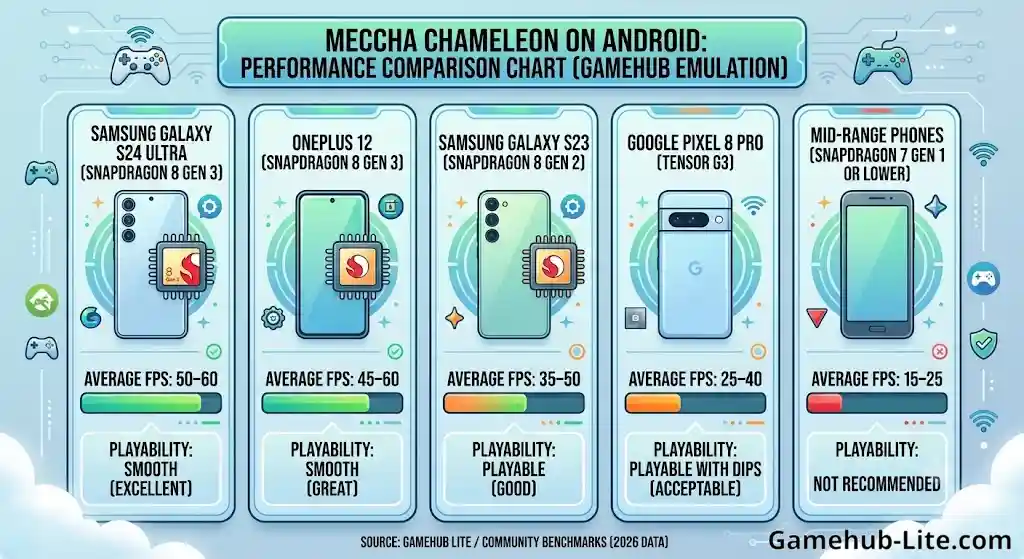
Let’s be honest. Mobile emulation is not the same as playing on a gaming PC. Here’s what real users report.
Performance by Device
| Device | Chipset | Average FPS | Playability |
|---|---|---|---|
| Samsung Galaxy S24 Ultra | Snapdragon 8 Gen 3 | 50–60 FPS | Smooth |
| Samsung Galaxy S23 | Snapdragon 8 Gen 2 | 35–50 FPS | Playable |
| OnePlus 12 | Snapdragon 8 Gen 3 | 45–60 FPS | Smooth |
| Google Pixel 8 Pro | Tensor G3 | 25–40 FPS | Playable with dips |
| Mid-range phones | Snapdragon 7 Gen 1 or lower | 15–25 FPS | Not recommended |
Tips for Better Performance
- Close background apps before launching
- Use a phone cooler or play in a cool room
- Lower resolution to 720p
- Turn off shadows and post-processing
- Enable DXVK in GameHub settings
- Update GameHub to the latest version
Common Problems and Fixes
Running into issues? Here are the most common ones and their solutions.
Game Won’t Launch / Black Screen
Fix: Install the ARM64 VC++ Redistributable (2026) inside the desktop container. See Step 4 above.
Game Crashes After Loading
Fix: Try these in order:
- Lower graphics to minimum
- Reinstall the VC++ runtime
- Clear GameHub cache
- Update GameHub to the latest version
Lag or Low FPS
Fix:
- Set resolution to 720p
- Set FPS limit to 30
- Close all background apps
- Use a phone cooler
Controls Not Working
Fix:
- Re-map controls in GameHub settings
- Disconnect and reconnect your Bluetooth controller
- Try switching between touch and controller mode
Steam Login Fails
Fix:
- Check your internet connection
- Verify your Steam credentials
- Disable VPN if you’re using one
- Try logging in through the Steam mobile app first
GameHub vs Other Ways to Play Meccha Chameleon on Mobile
Also Read: GameHub vs GameHub Lite: Full Comparison
Not sure if GameHub is the right choice? Here’s a comparison.
| Method | Cost | Performance | Ease of Setup | Offline Play |
|---|---|---|---|---|
| GameHub (Emulation) | Free app + $6 game | Good on high-end phones | Moderate | Limited |
| GameHub (Cloud) | Free app + $6 game | Depends on internet | Easy | No |
| Steam Deck | $399+ device + $6 game | Excellent | Easy | Yes |
| PC / Laptop | Existing PC + $6 game | Best | Easiest | Yes |
| GeForce NOW | Subscription + $6 game | Great (needs fast internet) | Easy | No |
Best for most people: If you already own a high-end Android phone, GameHub is the cheapest way to play Meccha Chameleon on the go.
Frequently Asked Questions
Is Meccha Chameleon free on GameHub?
No. You need to buy the game on Steam (~$6). GameHub is a free app, but the game itself is a paid purchase.
Does Meccha Chameleon have mobile controller support?
The game itself doesn’t have native mobile support. But GameHub provides on-screen controls, and you can pair Bluetooth controllers for a better experience.
Can I play multiplayer on GameHub?
Yes. You join the same Steam servers as PC players. You need a stable internet connection for online multiplayer.
Will my phone overheat?
It can, especially on long sessions. Use a phone cooler and take breaks. High-end Snapdragon chips handle heat better than most.
Is this method legal?
Yes. You are running a game you legally purchased on Steam. GameHub is a legitimate emulation tool. There is no piracy involved.
Final Thoughts
Meccha Chameleon is a blast to play. The hide-and-seek gameplay is creative, chaotic, and perfect with friends. Playing it on Android through GameHub is not perfect. But it works.
You need a decent phone. You need to install the VC++ runtime. You need to tweak settings. But after that? You can paint ridiculous camouflages from your couch, your bed, or anywhere else.
For the best results:
- Use a flagship phone (Snapdragon 8 Gen 2 or newer)
- Start with low graphics settings
- Install the VC++ Redistributable before first launch
- Use a Bluetooth controller
Download GameHub now and start playing Meccha Chameleon on your Android device today.
Have questions or running into issues? Drop your phone model and GameHub version in the comments. We’ll help you get the right settings for your device.